Who should read this?
You should read this if you are interested in using Linux on some kind of network, and would like (or need to) learn more about how Linux is configured for such things. These instructions should (hopefully) work on any Linux distrabution. If you are running a Redhat ot Slackware based box you may want to check out last months article on congiguring your system using the netcfg GUI(Graphical User Interface) tool. If you are running a Debian based system (except perhaps Corel) you will need to read this to configure your network. Whatever you are using, the Unix/Linux command line good to learn, as it is more mature than the GUI tools and will vary less over time and across distrabutions.
If you haven't already, you should read the first column, Linux Network Basics, Ground Zero. Expect to be pointed back to it every month.
How should I read this?
In similar fasion to the netcfg article, I will break this up in to four sections. The first section will be configuration neccesary to both a dial up connection and local network, the second will on configuring a LAN (Local Area Network) Ethernet network, the third on configuring a PPP(Point to Point Protocol) network connection with pppd, and the fourth will cover some the configuration of additional optional networking files used by both PPP and a LAN.
Command line is hard. Is there an easier way?
Ok I'll be the first to admit sucumbing to panic when working at the command line. When working at a terminal you have a limited amount of information in front of you at any given time, this combined with strange commands and unfamiliar syntax can send jolts of fear up the spines of even the most hardened administrators. Keep your cool, even if you screwed up 9 times out of 10 you can get out of it with a little care. Here are some things to keep in mind...
What information do I need?
You will need to scour for some information to configure your Linux system. You will need to find your...
Where can I find these things?
You can find this information by talking to your Network Administrator(The geeky humanoid who hangs around in the server room), or by examining your settings in Windows. There are ways to determine the settings for your Ethernet card without either.
Could you give me an example?
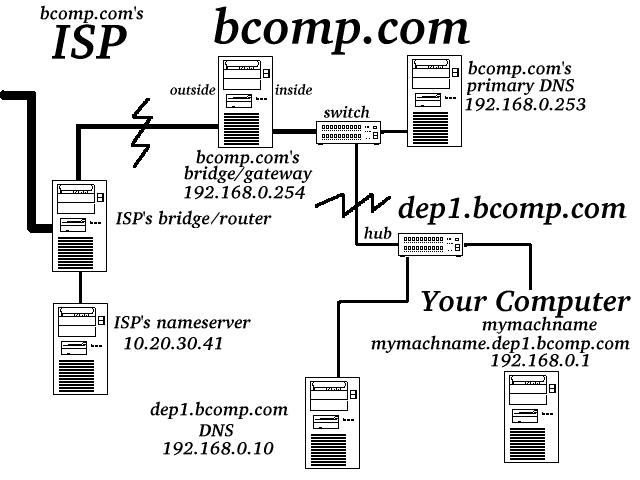
Here is a sample LAN configuration with the Data I said you would need.
I laid out the topology of our example in this diagram, you don't need this but it might help explain what those numbers point at.
Isn't someone going to get mad at you for using their IP numbers in this example?
The 10.xxx.xxx.xxx and 192.168.xxx.xxx IP numbers are special reserved numbers to be used on private networks. Don't use these any decent router will knock em off the Internet at the first stop.
My Network Administrator hates Linux/won't help me.
Ehhh... we don't need him anyway. You can obtain this information from Windows. See the ethernet section in last months article for instuctions http://www.linuxmonth.com/issue2/articles/networking/networking.html
How do I know if my ethernet card is working?
Good news, most Linux distrabutions configure the linux kernel and or scripts to recognise your card on boot. First you should see if your distrabution recognised the ethernet card and configured and inserted a module for you. Typically your ethernet cards are named eth0, eth1, eth2 and so on. Use the command tail -n 300 /var/log/messages | less to view the log of your bootup process. You can search for the "eth0" text by typing /eth0 once your are in the "less" viewer. If you find a line containing eth0 make sure the date and time make sense, if not you can jump to the next instance by again typing /eth0. If it says somthing like "Failed" in the line it didn't work.
OK the ethernet card didn't initilize automaticly. Now what?
Like I didn't know that was coming. :) You will have insert the module manualy. You will need some information about the card before inserting the kernel module which will vary depending on the make. Usually you need the I/O (Input Output) address and somtimes the IRQ(Interupt ReQuest) number, check out /usr/src/linux/Documentation/networking/net-modules.txt for the syntax and required information for your card.
Depending on the card you may be able use the pnp (Plug aNd Play) mode and set up the card via the isapnp tools. For more information the isapnp tools type man pnpdump.
If you have jumpers to control these settings on the card you only need to look at the physical card to get the settings. Most modern card manufacturers provide software to configure their brand of cards settings directly. I've found the SMC etherEZ cards to be very good in this respect.
Ok I have the I/O address etc... now what.
Using our example with an isa card in ne2000 mode you would type modprobe ne io=0x300 where "ne" is the driver name. You can use the lsmod command to see if it is loaded.
Now my card's driver is loaded. How do I get on the Internet with it?
Next you have to set the IP (Internet Protocol) Address. To attach our example IP address to that ethernet card you would type /sbin/ifconfig eth0 192.168.0.1 netmask 255.255.255.0 up. Check to see if your configuration went through with /sbin/ifconfig with no arguments. Your card "eth0", should assigned an ip address "192.168.0.1" with our bitmask 255.255.255.0.
Next you will need to tell the IP packets where to go once they are sent. In the case of our LAN, you are concerned with two potential destinations... our subnetted section of the LAN (anything with a 192.168.0.xxx number), and everything else. This basic roadmap is also known as routing. Would you believe that set up the "Routing Table" is done with the command /sbin/route.
You must set up the LAN route first as the machine that every packet not destined for 192.168.0.xxx will be sent to has a 192.168.0.xxx number. Huh? That machine, the Gateway that is, has 192.168.0.254 for an IP number. Still don't get it? Don't worry just do the following commands in order. The command for setting up the LAN destination is /sbin/route add -net 192.168.0.0 netmask 255.255.255.0 eth0. Then you should execute the command /sbin/route add default gw 192.168.0.254 eth0. Type the command /sbin/route to confirm a succesful configuration.
Are we there yet Papa Smurf?
Not yet my little smurfs. But we are done with the LAN specific stuff. You should probobly jump to section 4.
What information do I need?
You will need a bit of information to configure your Linux system.
Where can I find these things?
You can find this information by calling your ISP(Internet Service Provider), by searching for it on your ISP's website. You likely were told to print it or write it down at one point. You can also obtain information by examining your settings in Windows, that is minus the password. You will have to find the password elsewhere.
Could you give me an example?
No I'm tired after all this typing. Just kidding.
My ISP won't help me. What do I do?
ISP's are a dime a dozen, get a new one. May 1, 2000, I've had good luck with Mindspring.com.
How do I extract info from Windows?
Last month I went over how you can obtain this information from Windows. See the ethernet section in last months article for instuctions http://www.linuxmonth.com/issue2/articles/networking/networking.html
How do I configure my name servers?
You probobly would not have asked it that way, fair enough, but you should. ;) Without some type of name server listed in /etc/named.conf you won't be able to use For both
How do I change my computer name from localhost?
Nobody really wants their machine to report as "localhost" when they boot up, it's kinda like leaving the rubber bumpers on the side of the boat once your out of the channel, it just screams "I don't have a clue!". Actually it's really nothing like that but making you paranoid is fun, LOL(Laugh Out Loud, no unexpanded Acronims here it's silly but it's my rule.) Just edit your /etc/hostname file and change "localhost" to "mymachname" for our LAN, or whatever you want it to be for the PPP connection.